8 Ways AI Transforms Your Notes into Stunning Presentations
For years, building a presentation meant starting from a blank slide, hunting for images, and painstakingly arranging bullet points. But a smarter workflow exists—one that feeds your existing notes directly into AI tools like Google Gemini. Instead of reinventing the wheel, you can let AI turn your research, ideas, and connected thoughts into a polished deck in minutes. This approach not only saves time but also ensures your best material (the stuff you've already written down) doesn't get left behind. Here are eight key things to know about this new way of working.
1. Start with Your Notes, Not a Blank Slide
The biggest shift is abandoning the traditional start-from-scratch method. Your best ideas already exist somewhere—in an Obsidian vault, a Notion database, or even a plain text file. Instead of opening Google Slides and thinking, “What do I put here?” you open your notes. By using AI, you can feed those raw, often messy notes directly into a presentation generator. The AI extracts the core concepts, organizes them logically, and creates a first draft. You then refine, not create. This flips the entire workflow: you become an editor of AI-generated drafts, not a slave to a blinking cursor.
2. Google Gemini Is Your Free Co-Creator
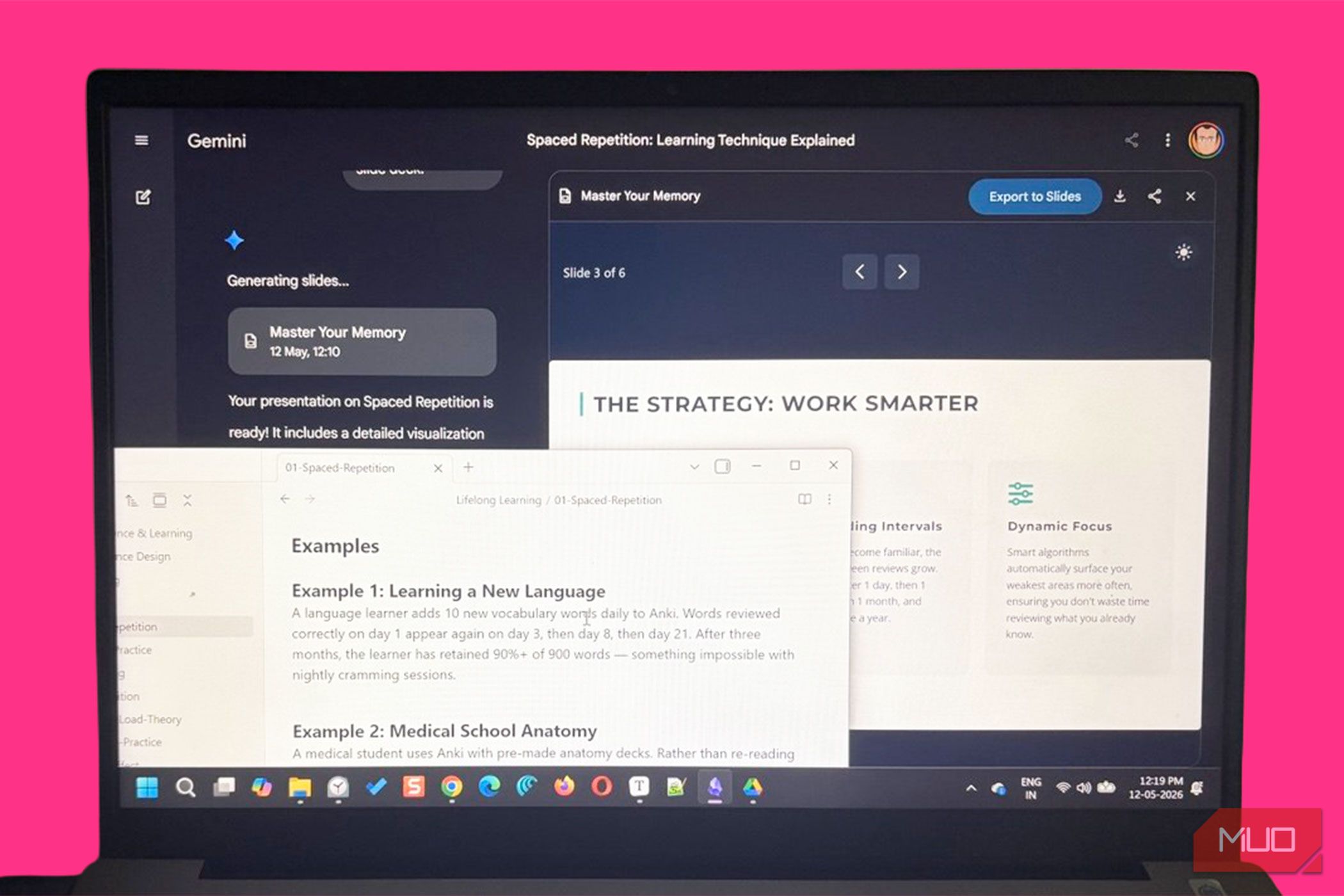
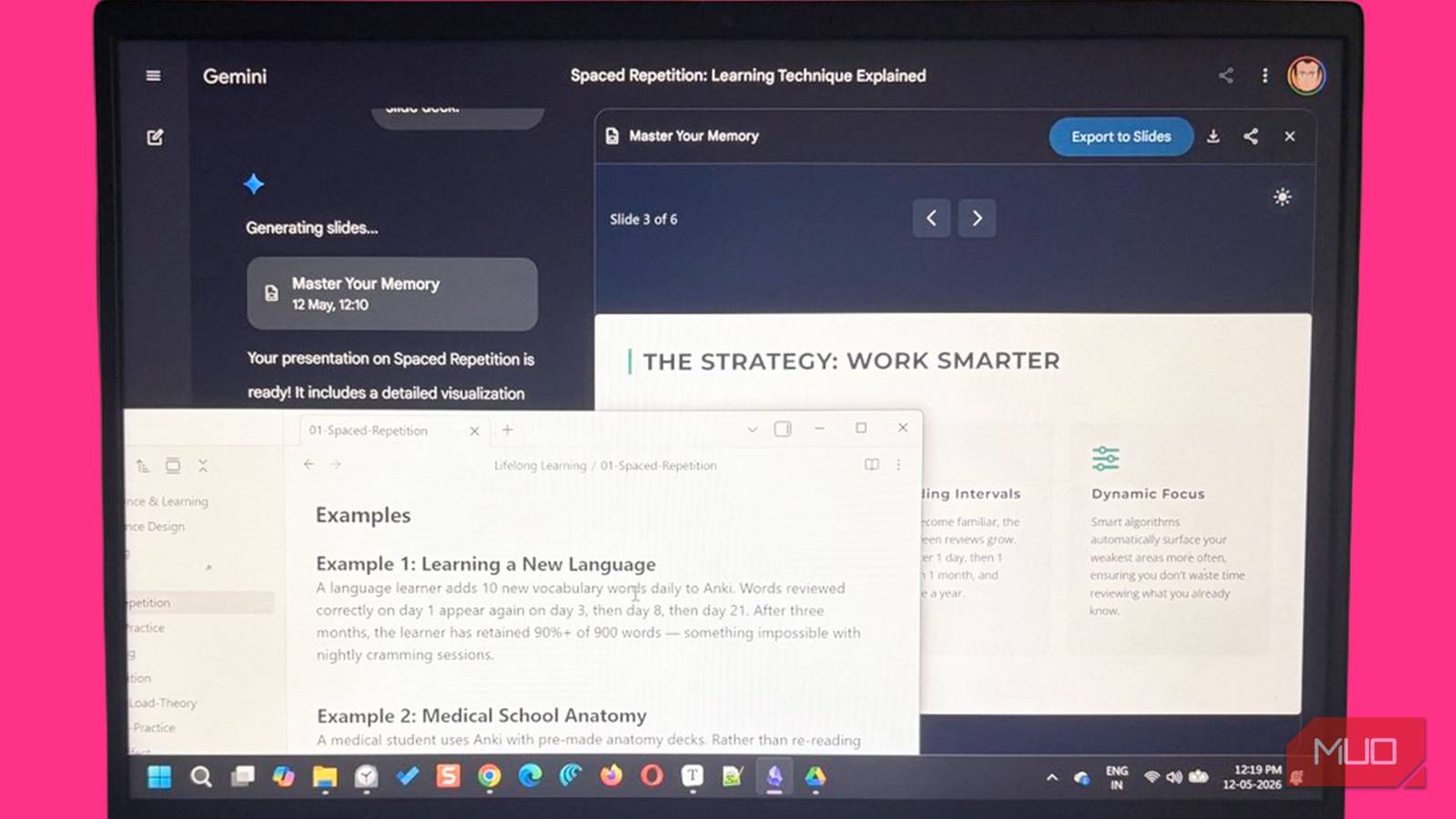
You don't need expensive software to make this work. Google Gemini, integrated into Google Slides (and accessible via Gemini for Workspace), lets you type a prompt and watch a deck appear. The magic happens when you combine it with your notes: copy your research bullet points into the prompt box, add a request like “turn these into a six-slide executive summary,” and Gemini generates a structured presentation. It handles slide titles, content grouping, and even suggests visuals. Best of all, it's free for basic use (within Google account limits). No special licenses required.
3. Obsidian’s Connected Thoughts Become Slide Structures
Obsidian is more than a note‑taking app—it's a personal knowledge graph. When you link ideas with [[ ]] notations, Obsidian builds a web of connections. These connections are gold for presentations. Feed a cluster of linked notes into Gemini, and the AI recognizes relationships between concepts. It can propose a narrative flow that mirrors your original thinking, turning a tangled web of notes into a linear, audience-friendly slide sequence. This preserves the depth of your research while making it accessible to others.
4. Prompt Engineering Is Your Secret Weapon
Not all prompts are equal. To get great results, be specific: “Create a 10‑slide deck for a 15‑minute talk, using these bullet points. Use clean design, one key idea per slide, and avoid jargon.” You can also provide a sample slide structure you like. The AI learns from your instructions. Experiment: ask for different tones (formal vs. casual), different formats (Q&A, problem‑solution, timeline), or different visual styles (minimalist, corporate, creative). Each prompt tweak yields a different deck, letting you quickly explore multiple angles before settling on one.
5. Refining AI Output Is Where the Real Work Happens
Letting AI generate a deck is only the first step. The refinement stage is crucial. You might need to reorder slides, adjust wording, or add custom images. AI often misinterprets nuance or includes irrelevant details. Your job is to curate: keep what works, delete what doesn't, and add your personal voice. Think of the AI draft as a skeleton—you provide the muscle and skin. This editing phase is much faster than building from scratch, but it still requires your critical eye. The best presentations come from a human‑AI collaboration, not a one‑click solution.
6. Internal Anchor Links Improve Navigation (Use Them)
When writing your article or documentation about this workflow, internal anchor links help readers jump to specific steps. For instance, you can link from the intro to item 1 (Start with Your Notes) or from item 7 back to item 2. In the presentation itself, consider adding clickable links in the slide notes or a table of contents slide. This makes the deck interactive, especially for digital sharing. The AI can even generate these links if you include instructions in your prompt, though manual tweaking ensures they're accurate.
7. Keep Your Notes Clean for Better AI Output
Garbage in, garbage out. If your notes are a jumble of half‑formed thoughts, the AI will produce a messy deck. Take a few minutes to clean your notes before feeding them to Gemini: remove duplicates, add context, and group related ideas. You don't need perfect prose—just clear, actionable snippets. The more organized your input, the better your output. Consider creating a dedicated “presentation drafts” folder in your note‑taking app. This practice also helps you clarify your own thinking before the AI gets involved.
8. The Workflow Scales from Quick Talks to Keynotes
This “notes‑to‑slides” method isn't just for quick internal updates. I've used it to generate drafts for conference keynotes with 30+ slides. The same process works: gather notes, prompt Gemini, refine. For longer presentations, break the notes into sections and generate each section separately, then stitch them together. The AI maintains consistency in design and tone across segments. Whether you're creating a 5‑minute team update or a 45‑minute workshop, starting from your notes—not a blank slide—is a universal time‑saver.
By now, you've seen how a simple shift in workflow—from starting with a blank slide to starting with your notes—can transform your presentation creation process. AI tools like Google Gemini, when combined with thoughtful note‑keeping in apps like Obsidian, turn hours of drudgery into minutes of refinement. The key is to embrace the role of editor, not creator. Let the AI handle the structure and first draft; you bring the insight and polish. Next time you need a presentation, resist the urge to open a new slide deck. Open your notes instead, and let AI do the heavy lifting.
Related Articles
- DaVinci Resolve 21's Photo Page: A Surprising New Tool for Video Editors
- Fonttrio Debuts as Open-Source Font Registry for shadcn/ui, Offering One-Command Installation of 49 Curated Pairs
- 10 Game-Changing Ways AI Is Revolutionizing Software Development
- Beyond Prompt Injection: Securing the Expanded Attack Surface of AI Agents with Tools and Memory
- ‘Oddity’ Surges in Streaming Amid ‘Hokum’ Box Office Success – Here’s Why Fans Are Calling It Masterful Horror
- Warhammer 40,000: Mechanicus II Arrives May 21 Alongside Warhammer Skulls Showcase
- Open Block Protocol aims to unify web editors with reusable components
- Building Smarter AI Systems: A Practical Guide to the Probabilistic Paradigm Shift