Getting Started with gThumb 4.0: A Comprehensive Guide to the GTK4/Libadwaita Overhaul
Overview
gThumb, the popular open-source image viewer and organizer, has undergone a radical transformation in its upcoming version 4.0. Completely rewritten in Vala and ported to GTK4 and libadwaita, the new interface is a stark departure from the familiar GTK3 look. This alpha release brings modern design patterns, support for WEBP and PNG animations, the ability to export images in the JPEG XL (JXL) format, and a censor filter for pixelating or blurring parts of an image. While visual consistency isn't guaranteed out of the box, the update marks a significant leap forward in functionality and aesthetics. This guide will walk you through everything you need to know to get started with gThumb 4.0—from understanding what's new to installing and experimenting with it.

Prerequisites
System Requirements
- Operating System: Linux distribution that supports GTK4 and libadwaita (e.g., Fedora 34+, Ubuntu 22.04+, Arch Linux).
- GTK4 and Libadwaita: Ensure these libraries are installed. Most modern distros include them by default.
- Flatpak (recommended): For a hassle-free installation, Flatpak support is useful.
- Development Tools (optional): If building from source, you'll need Meson, Ninja, Vala compiler, and other build dependencies.
Knowledge
- Basic familiarity with the terminal and package management.
- Understanding of alpha software risks (instability, missing features).
Step-by-Step Instructions
1. Understanding the Changes
Before diving in, it's crucial to appreciate what's different. gThumb 4.0 is not just a simple version bump. The entire codebase was rewritten from Python (or older Vala?) to pure Vala, leveraging GTK4's refined toolkit and libadwaita's modern design language. This results in a cleaner, more responsive interface with adaptive layout, dark mode support, and touch-friendly controls. However, the alpha stage means some features may be incomplete or buggy. Key new capabilities include:
- WEBP and PNG animation support: View animated images seamlessly.
- JXL export: Save images in the highly efficient JPEG XL format.
- Censor filter: Quick pixelation or blurring for privacy editing.
2. Installing gThumb 4.0 Alpha
There are two primary ways to get the alpha build: via Flatpak (official test channel) or by compiling from source. We recommend Flatpak for ease.
Option A: Install via Flatpak (Flathub Beta)
- Ensure Flatpak is installed on your system. If not, install it with your package manager (e.g.,
sudo apt install flatpakon Ubuntu). - Add the Flathub beta repository:
flatpak remote-add --if-not-exists flathub-beta https://flathub.org/beta-repo/flathub-beta.flatpakrepo - Install gThumb 4.0 beta:
flatpak install flathub-beta org.gnome.gThumb - Run the alpha version:
flatpak run org.gnome.gThumb
Note: The beta channel may have multiple versions; choose the one marked 4.0 alpha.
Option B: Build from Source
- Clone the repository:
git clone https://gitlab.gnome.org/GNOME/gthumb.git cd gthumb - Checkout the GTK4 branch (typically named
gtk4orwip/gtk4):git checkout origin/gtk4 - Install build dependencies. For Ubuntu/Debian:
sudo apt build-dep gthumb sudo apt install meson ninja-build valac libgtk-4-dev libadwaita-1-dev - Configure and build:
meson build ninja -C build - Run directly from build directory:
./build/src/gthumb
3. Exploring the New Interface
Launch gThumb 4.0. You'll immediately notice the header bar follows libadwaita conventions—rounded corners, adaptive spacing, and a centered title. The sidebar uses a collapsible design, and the main view adapts to window size. Important: Some buttons and menus may appear differently than in the stable version. The 'Edit' menu might lack certain tools; the censor filter is located under Filters > Censor.
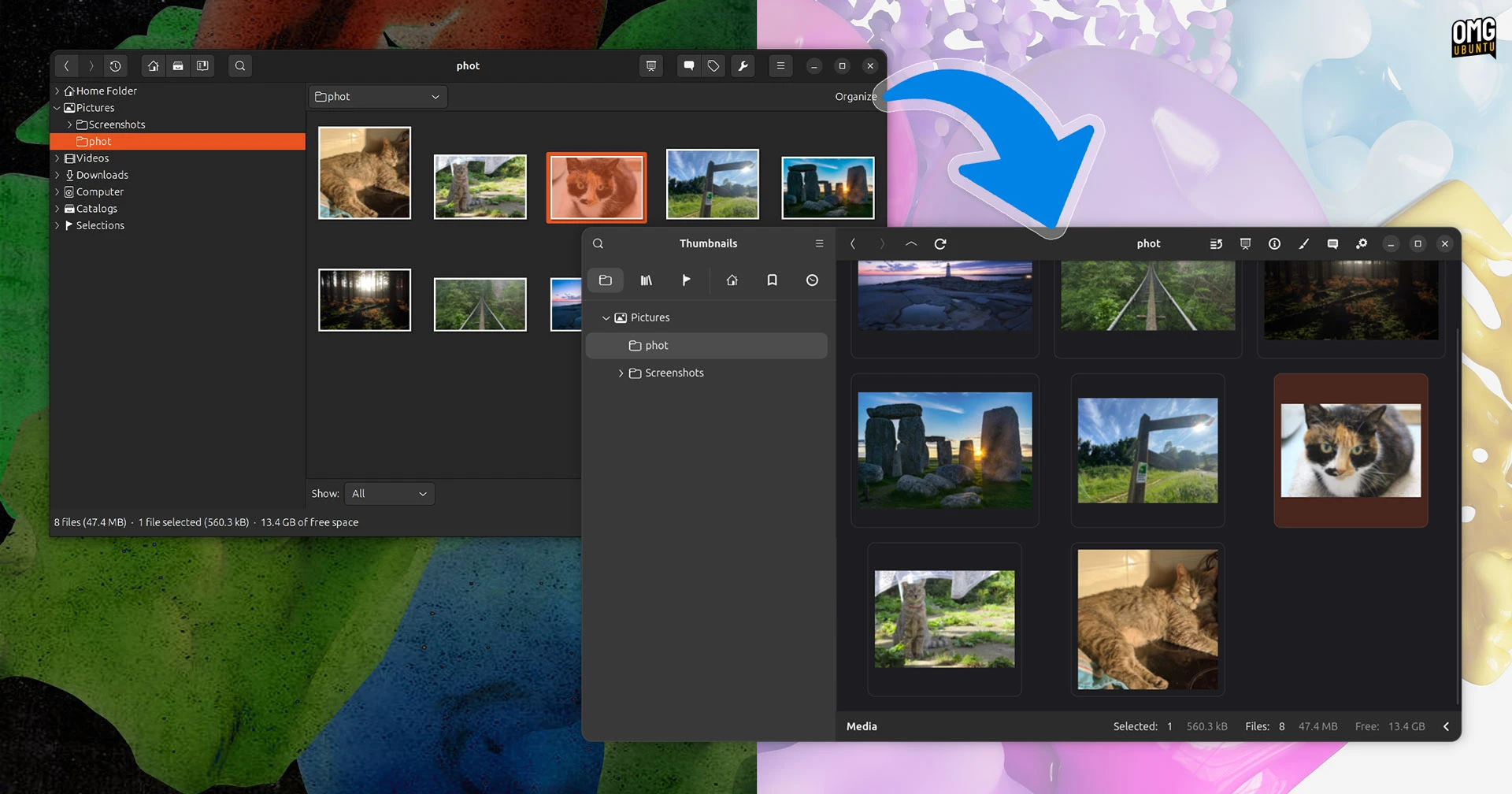
Tip: Customize the toolbar by right-clicking it. You can add/remove actions to match your workflow.
4. Using New Features
WEBP and PNG Animations
Simply open a .webp or animated .png file. gThumb will play the animation automatically in the viewer. You can pause/play using the toolbar button or the spacebar.
Exporting to JXL
- Open an image.
- Go to File > Export.
- In the format dropdown, select JPEG XL (*.jxl).
- Configure quality settings (lossy/lossless) and export.
JXL offers superior compression; ideal for archiving or sharing.
Applying the Censor Filter
- Select the area you want to censor using the selection tool (rectangle or freehand).
- Navigate to Filters > Censor.
- Choose between Pixelate or Blur.
- Adjust intensity via the slider and click Apply.
5. Troubleshooting Common Issues
If the interface looks broken (e.g., missing icons, misaligned widgets), ensure your system has the latest libadwaita theme. Run:
flatpak updateFor source builds, check that you're using GTK4 version 4.10+. Also note that the alpha may require a window manager with CSD support.
Common Mistakes
Assuming Full Feature Parity
The alpha is incomplete. Many plugins and advanced editing tools are not yet ported. Don't expect to replace your stable gThumb entirely.
Using Stable Release Channels
If you install from Flathub stable, you'll get version 3.x. Ensure you add the beta remote.
Ignoring Dependencies
When building from source, missing libraries like libheif or libraw might cause missing features. Install all optional dependencies listed in the meson_options.txt.
Not Backing Up Settings
Alpha versions might corrupt configuration files. Backup ~/.config/gthumb before testing.
Summary
gThumb 4.0 alpha brings a fresh look and new capabilities (WEBP/PNG animation, JXL export, censor filter) thanks to its GTK4/libadwaita port. To try it, install via Flatpak beta or compile from the gtk4 branch. Expect visual inconsistencies and missing features, but the foundation is promising. This guide equips you to explore the changes, test new features, and avoid common pitfalls. As development progresses, gThumb 4.0 promises to be a modern, powerful image manager.
Related Articles
- Fedora KDE Plasma Desktop 44 Launches with Accessibility Overhaul and QR Code WiFi Support
- Critical Security Patches Roll Out Across Major Linux Distributions
- Key Security Patches: Linux Distributions Update Critical Packages
- 7 Key Updates in Fedora Asahi Remix 44 for Apple Silicon Macs
- A Non-Programmer's Guide to Compiling C Programs from Source
- How to Leverage Linux Mint HWE ISOs for Better Hardware Support on New Machines
- Fedora Linux 44: What’s New and How to Get It
- Upgrade to Fedora Linux 44 on Silverblue: Your Complete Q&A Guide